


Each time one of your tests or surveys are taken, only 1 credit is used. For example:
When you buy credits you get access to all upgraded account Features:
When you assign a test either by Group or Link, you will be provided with a number of customizable settings such as:
ClassMarker gives you the flexibility to modify and reuse tests and test settings as needed:
To edit the settings for your test go to the Tests section and open the row for your test and select 'Settings' next to the group or link you wish to edit.
You can enhance security and variety in your tests by randomly pulling questions from categories in your question bank.
With ClassMarker you can create tests with:
Tip: Combine random and fixed questions to give users consistent content with a fresh mix of questions each time they take a quiz. Add further customization by creating Question Bank categories with different levels of difficulty.
Yes, ClassMarker's Assistant feature lets you assign multiple administrator roles with different access permissions. Permissions include:
Managing test results: View, grade, delete results. Reopen finished Tests
Managing Users: Group members, access lists.
Managing content: Questions, categories, themes, certificates, files, Webhooks, API keys, account payments.
By delegating specific tasks to different Assistants, you can streamline your workflow and reduce the workload on any single individual.
See: How to Create Assistants
For the main administrator account:
For assistant accounts:
ClassMarker's allows you to duplicate Tests, questions, certificates, and assignment settings. Duplicate tests to make slight variations without affecting the original or to assign with different settings.
Duplicate a quiz:
Yes, ClassMarker's has been built to accommodate the testing needs of all our users. That's why we offer a multilingual student & Test taker interface with language options.
English is our default Interface language but you can create your Tests in 25 supported languages.
Review our: Language options
You can easily view Test takers, Names and emails, Score, percentage, Question statistics and each answer given.
You can also review recent results that are still in progress in real time.
Review our: Viewing results
Yes you can create customer certificates for Test takers to download in real time with their Name, test name, Score and other details you optionally require.
You can also choose to only give Certificates if a User passes their exam.
Review our: Custom certificates
Access Lists enable you to restrict access to Tests and surveys assigned via Links.
Access Lists consist of a list of Access Codes that are created by you and can be any alphanumeric string of your choosing (for example, email addresses, student/employee IDs etc.).
Add and edit Access Lists under Links / Access Lists.
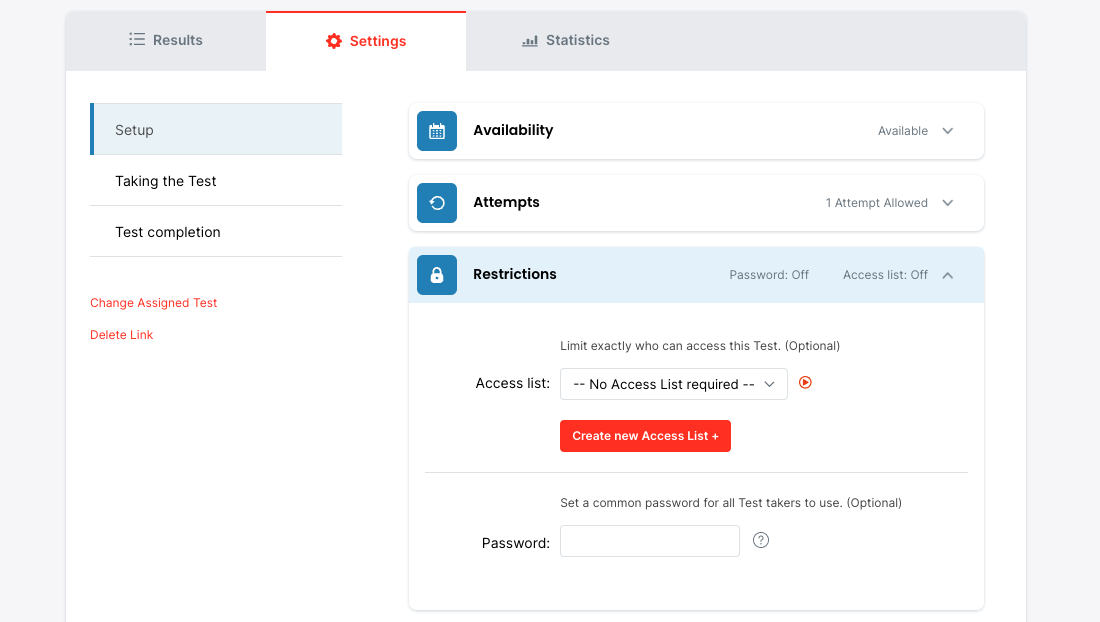
Apply an Access List when you assign (via Link only, not required for assignments via Groups, because each Group member is registered).
When a user goes to your Test or survey, they will be asked an "Access list question" (see below) where they must type a valid Access List item to enable them to access their assignment. You can also limit how many times users with Access items can take your Test or survey.
Additionaly, you can pass the Access list item on the Link itself to save users from having to type or even know their own Access item.
See our Quiz Maker developer documentation for more details.
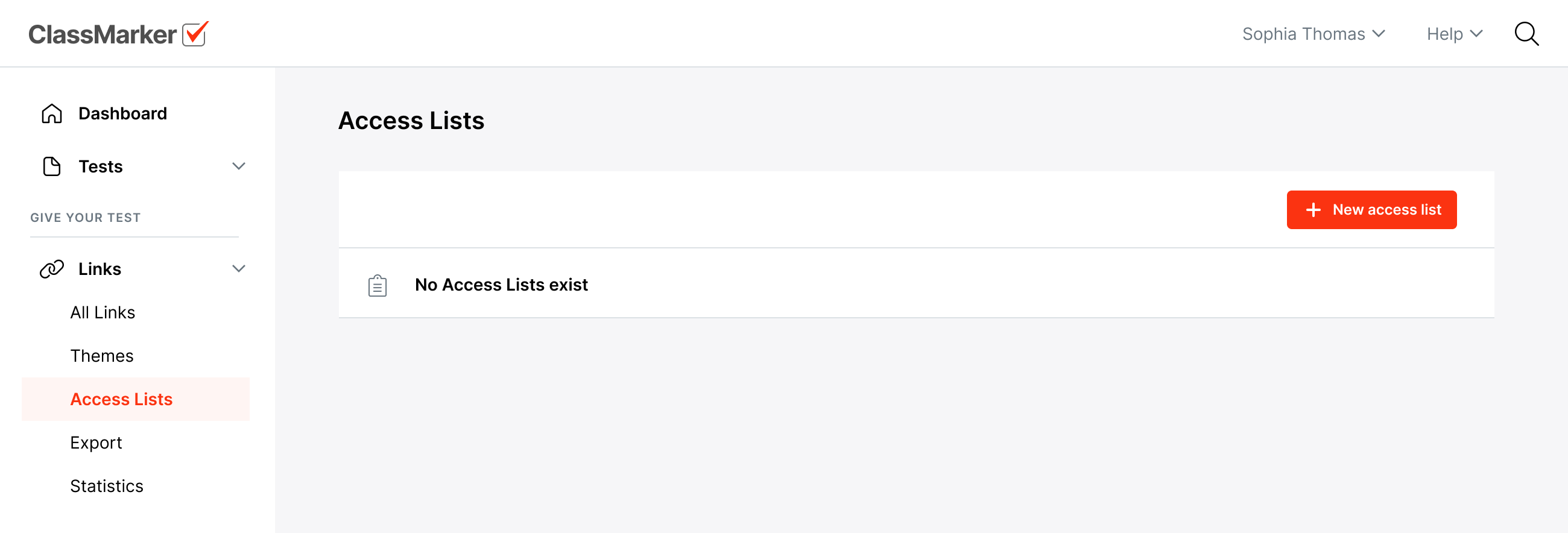
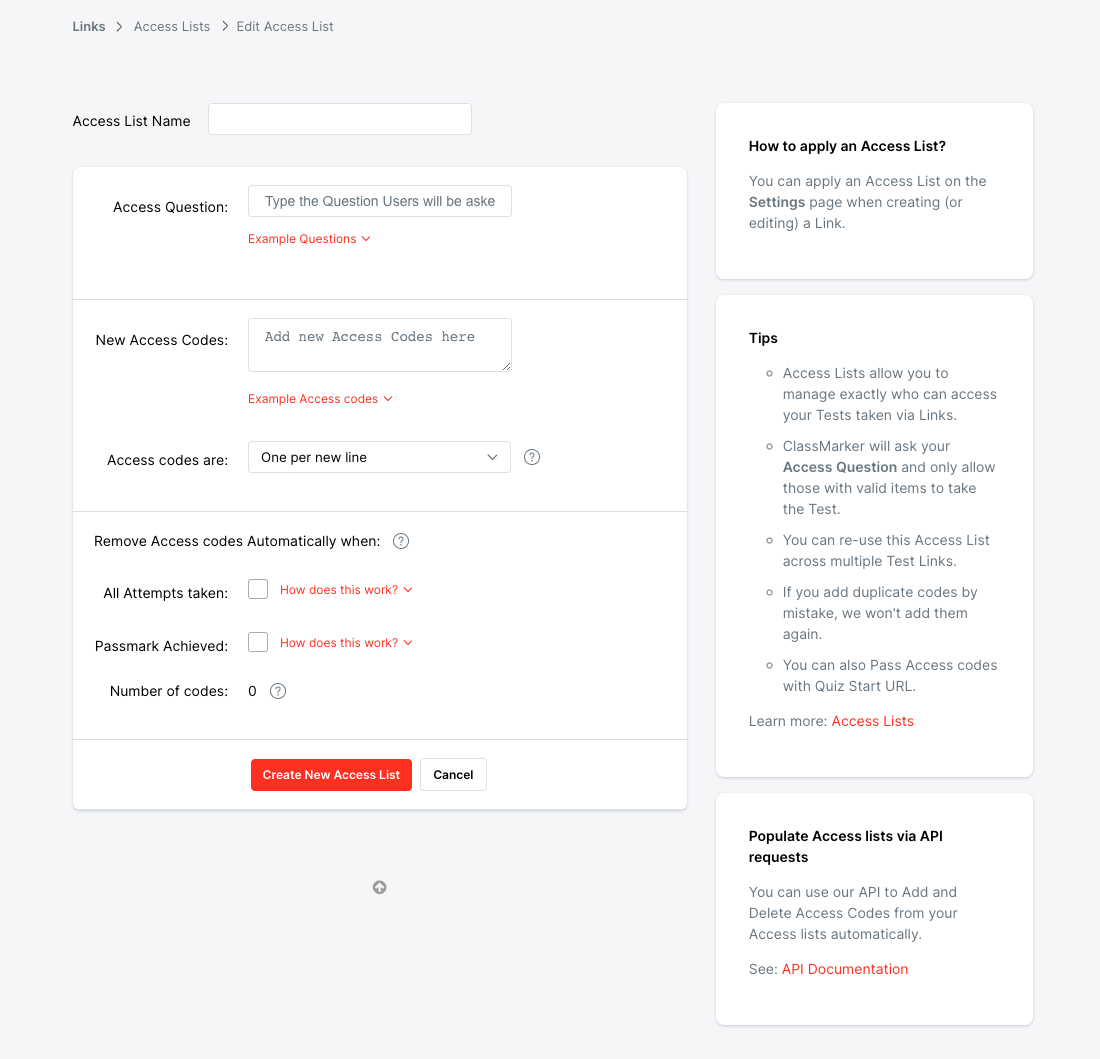
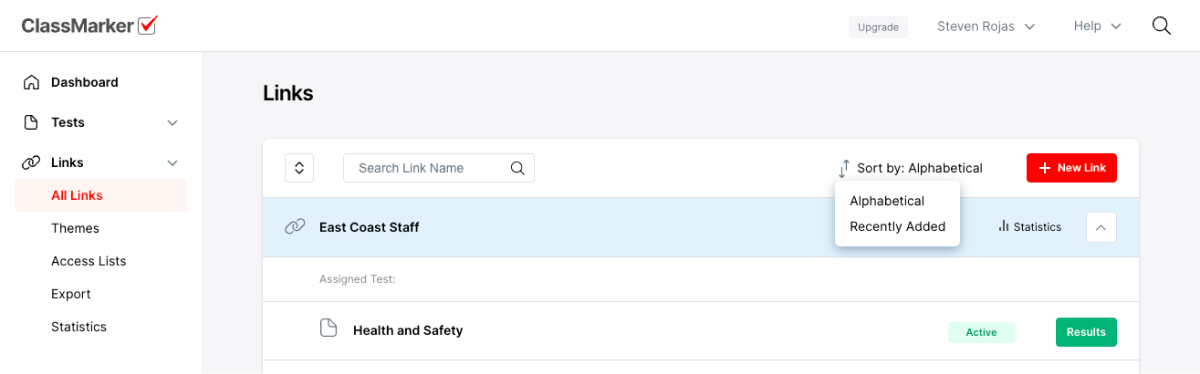
When you assign Tests or surveys via Links you have the option of restricting access via Access Lists.
This is an optional feature which your Web Developer can set up for you.
This feature allows you to send an Access code on the Quiz URL, this means you do not need to give each user an Access code, instead, you can have their unique Access code appended to the Start URL to give them access.
https://www.classmarker.com/online-test/start?quiz={QUIZ_ID}
&cm_fn=John (optional)
&cm_ln=Smith (optional)
&cm_e=john@example.com (optional)
&cm_access_list_item=their_access_code (optional)
See: View Integration documentation for more details.



