Frequently asked questions

Topics

Page loading

How do Credits work?

Each time one of your tests or surveys are taken, only 1 credit is used. For example:

  1. If you have 1 test and 5 users take it, 5 credits are used.
  2. If you have 2 tests and 5 users take them once each, 10 credits are used.
  3. If 1 user takes the same test twice, this will use 2 credits and so on.

When you buy credits you get access to all upgraded account Features:

  1. Certificate downloading
  2. Email results
  3. Save and review results
  4. Export results
  5. Analyze detailed Statistics
  6. API Integrations
  7. And more...

See our pricing options

How to Edit Test settings?

When you assign a test either by Group or Link, you will be provided with a number of customizable settings such as:

  1. test availability
  2. attempts allowed
  3. include certificates
  4. pass mark
  5. feedback messages
  6. and more...

ClassMarker gives you the flexibility to modify and reuse tests and test settings as needed:
To edit the settings for your test go to the Tests section and open the row for your test and select 'Settings' next to the group or link you wish to edit.

How to use Random Questions?

You can enhance security and variety in your tests by randomly pulling questions from categories in your question bank.

With ClassMarker you can create tests with:

  • Fixed questions: Consistent questions every time.
  • Randomly-selected questions: A different set of questions is displayed every time.
  • A combination of fixed (consistent) and randomly-selected questions (varying every time).

Tip: Combine random and fixed questions to give users consistent content with a fresh mix of questions each time they take a quiz. Add further customization by creating Question Bank categories with different levels of difficulty.

Learn more

Can I add multiple administrators?

Yes, ClassMarker's Assistant feature lets you assign multiple administrator roles with different access permissions. Permissions include:

Managing test results: View, grade, delete results. Reopen finished Tests
Managing Users: Group members, access lists.
Managing content: Questions, categories, themes, certificates, files, Webhooks, API keys, account payments.

By delegating specific tasks to different Assistants, you can streamline your workflow and reduce the workload on any single individual.

See: How to Create Assistants

Can I hand over my account to someone else?

For the main administrator account:

  1. Go to the "My account" page.
  2. Under "My details," update the username, password, name, and email.
  3. Provide the new details to the new administrator.

For assistant accounts:

  1. Only the main administrator can update an assistant’s username, email, and permissions.
  2. Assistants can change their own password under "My details" on their "My account" page.

Learn More

How to duplicate tests?

ClassMarker's allows you to duplicate Tests, questions, certificates, and assignment settings. Duplicate tests to make slight variations without affecting the original or to assign with different settings.

Duplicate a quiz:

  • To save time by reusing existing questions instead of creating from scratch.
  • For consistency: To ensure the core content remains the same while making necessary updates.
  • To tailor quizzes for different audiences or purposes.
  • To track and compare results by creating yearly or periodic versions of the same quiz.

Learn More

Can I create tests in multiple languages?

Yes, ClassMarker's has been built to accommodate the testing needs of all our users. That's why we offer a multilingual student & Test taker interface with language options.

English is our default Interface language but you can create your Tests in 25 supported languages.

Review our: Language options

What results can I see?

You can easily view Test takers, Names and emails, Score, percentage, Question statistics and each answer given.

You can also review recent results that are still in progress in real time.

Review our: Viewing results

Can I create custom certificates?

Yes you can create customer certificates for Test takers to download in real time with their Name, test name, Score and other details you optionally require.

You can also choose to only give Certificates if a User passes their exam.

Review our: Custom certificates

On this page:

Create Certificates

ClassMarker allows you to create custom Certificates to be displayed at the completion of your Test/s or survey/s.

With the certificate editor, options include:

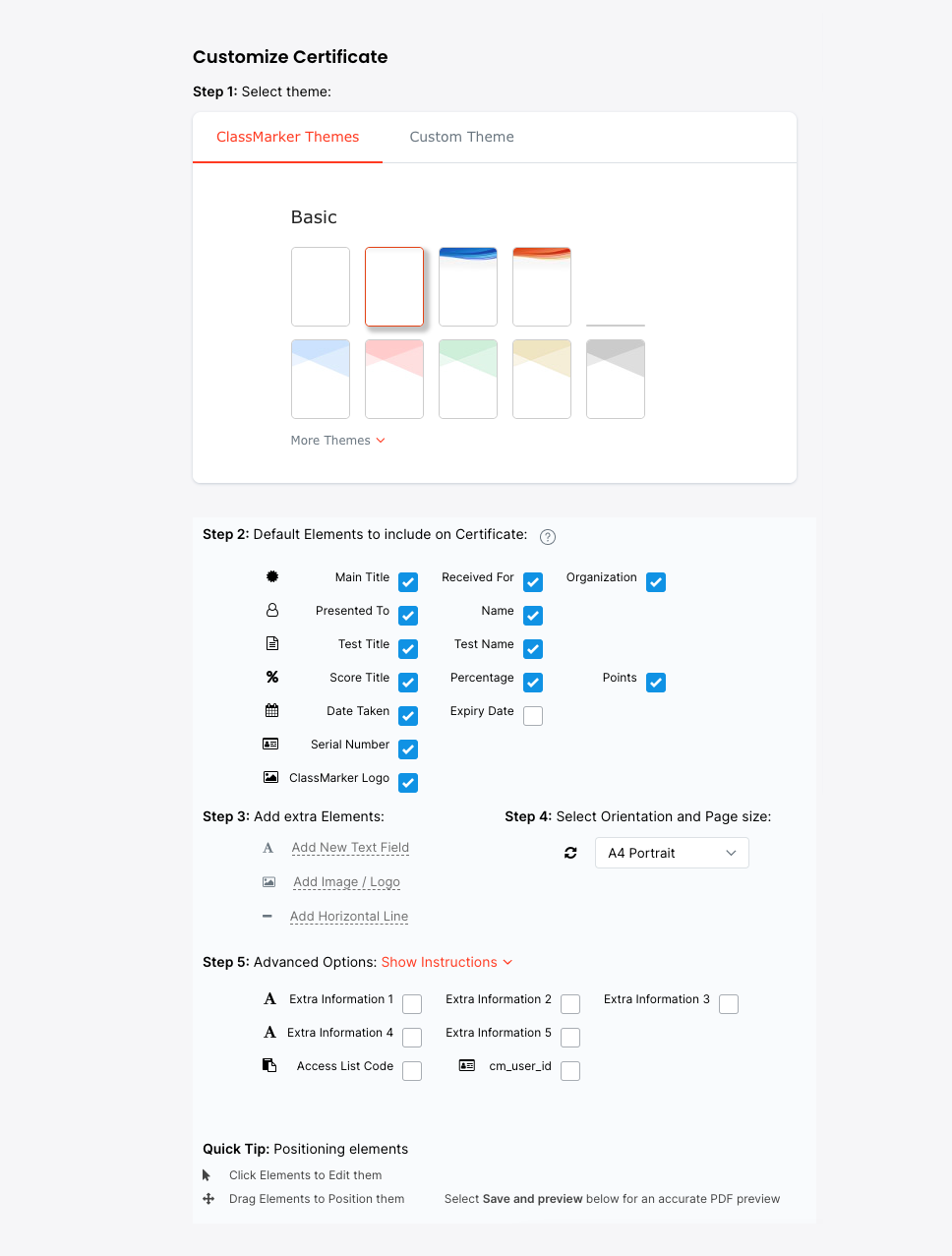
There are many different design backgrounds to choose from OR you can upload your own custom background image (which can include your signature on it as well).

When you assign (distribute) your Test or survey, you can choose whether you'd like to include a Certificate. You can also define whether the Certificate will be displayed to all users upon completion, or if the Certificate should only be displayed if the user achieves a pass grade (the pass grade for tests is also defined by you).

Download our PDF Certificate design manual to send to your web designer which contains instructions on creating a custom background image for your Certificate.
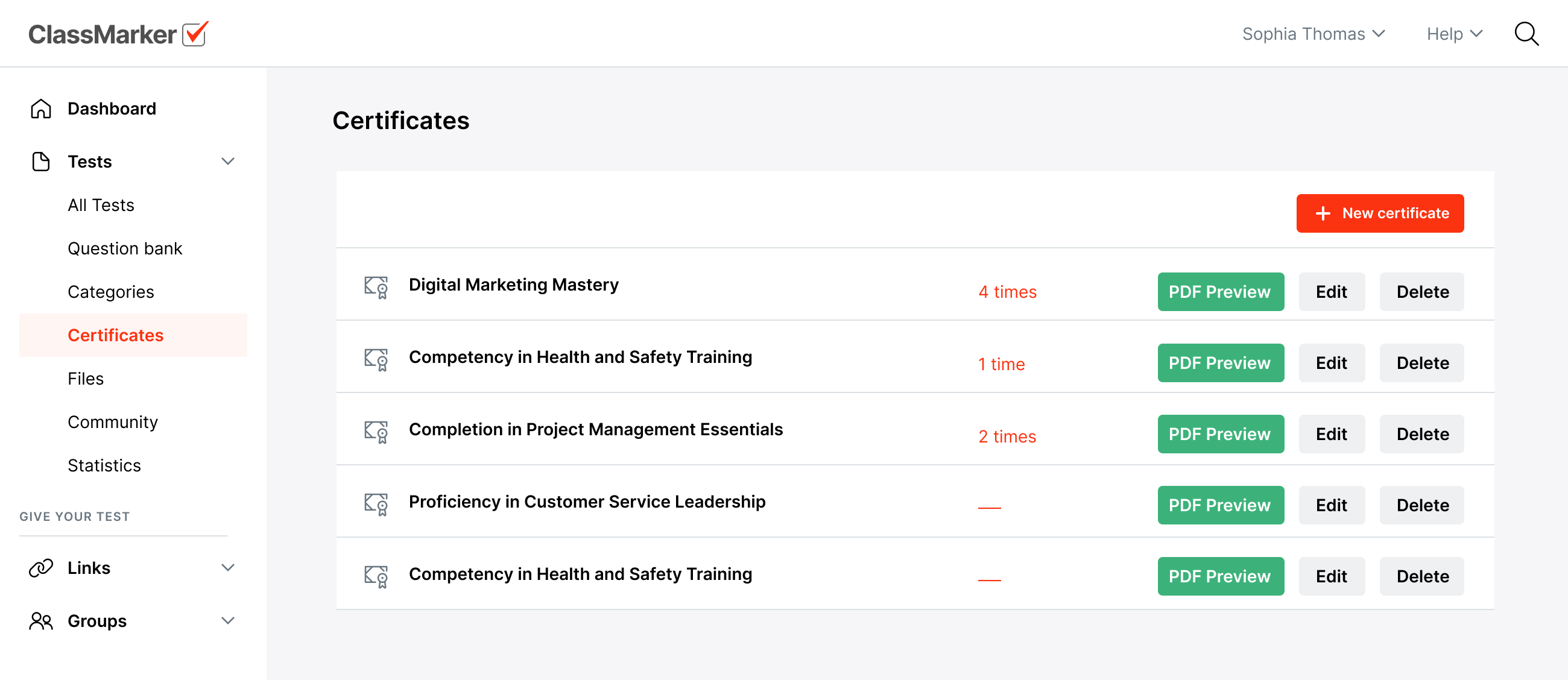
How to Create and Edit Certificates:

  1. Go to your Certificates page.
    Screenshot
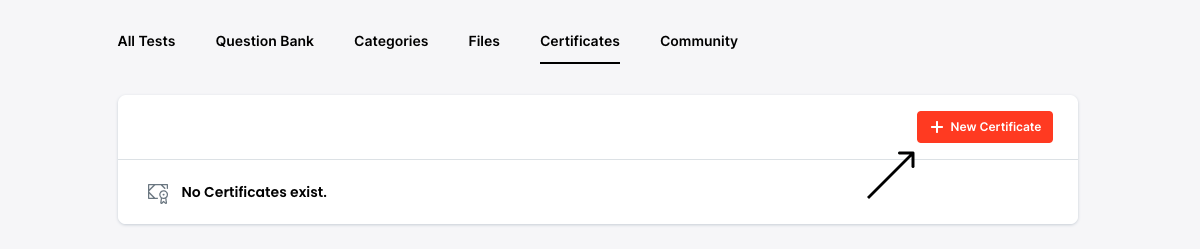
  2. Select 'New Certificate'.
    Screenshot
  3. Choose a Certificate name, choose your Certificate background and choose whether to display the user's name, score and the Test name. These details will be added automatically for each user when they download their Certificate.
    Screenshot
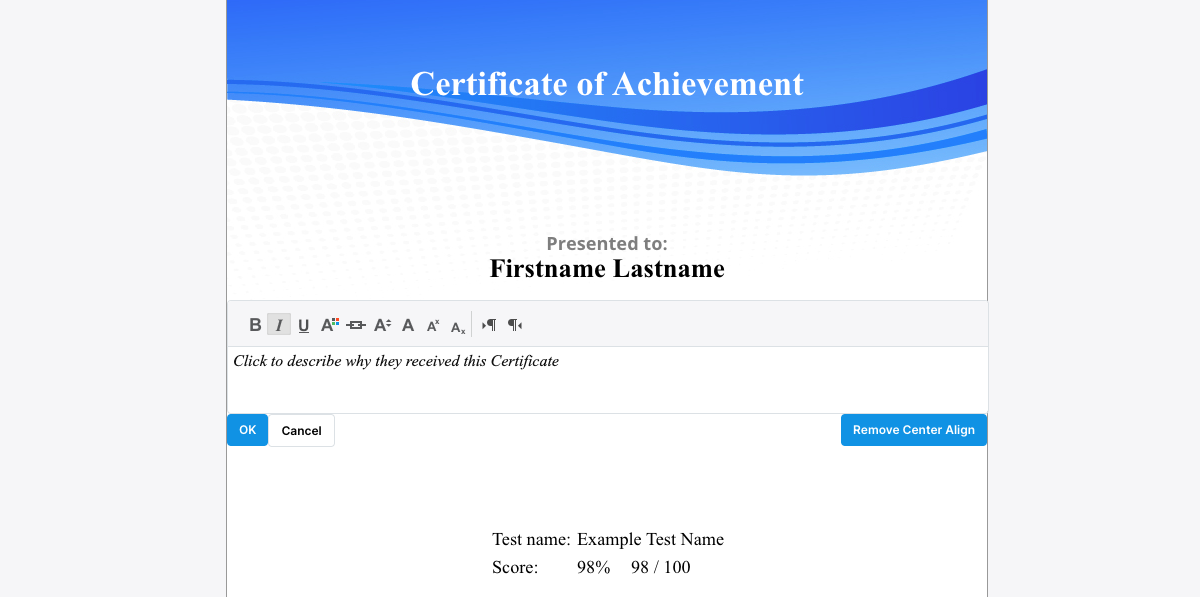
  4. Edit text fields and drap and drop to any position.
    Screenshot
  5. Choose whether to use the ClassMarker logo or upload your institution's own image or logo.
    Select 'Save and Preview Certificate'.
  6. Congratulations! You have created your custom Certificate.

How to Apply a Certificate to your Tests or Surveys:

When you assign your Test or survey, you have the option of displaying a Certificate and specifying whether it will show 'Always on completion' or 'Only when a Test is passed'.
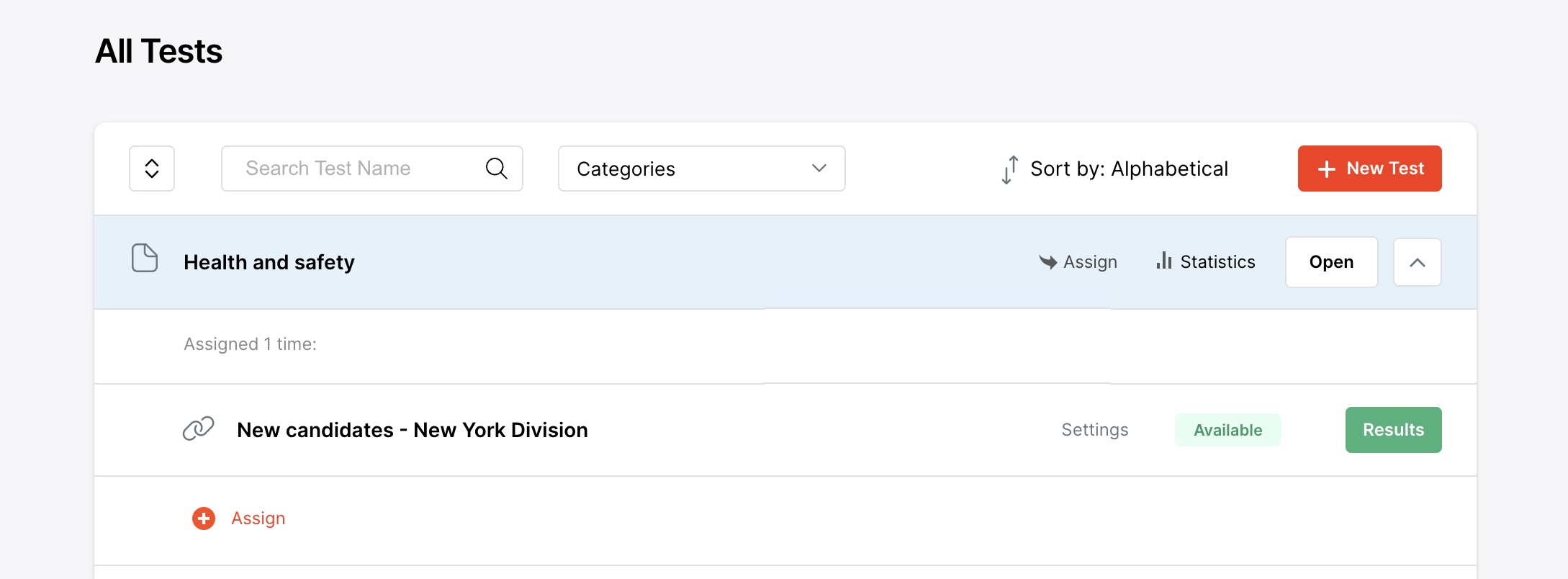
  1. Go to the Tests section and select 'Settings' for the assigned Test or survey you wish to show the Certificate.
    Screenshot
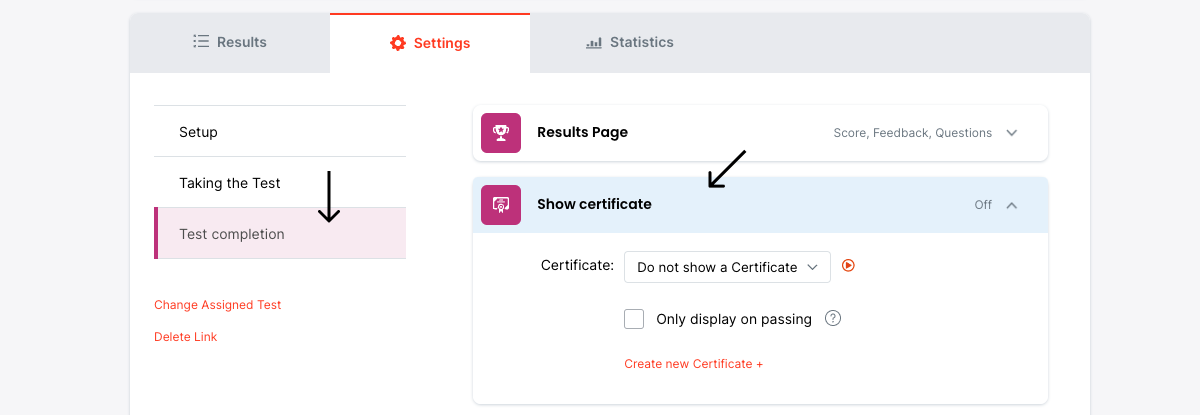
  2. Expand your Certificate setting.
    Screenshot
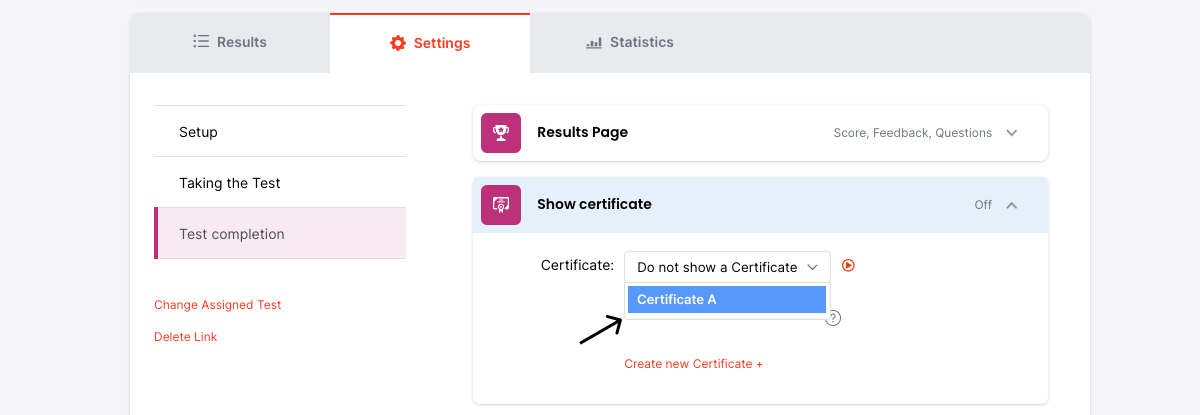
  3. Select which Certificate you would like to use.
    Screenshot
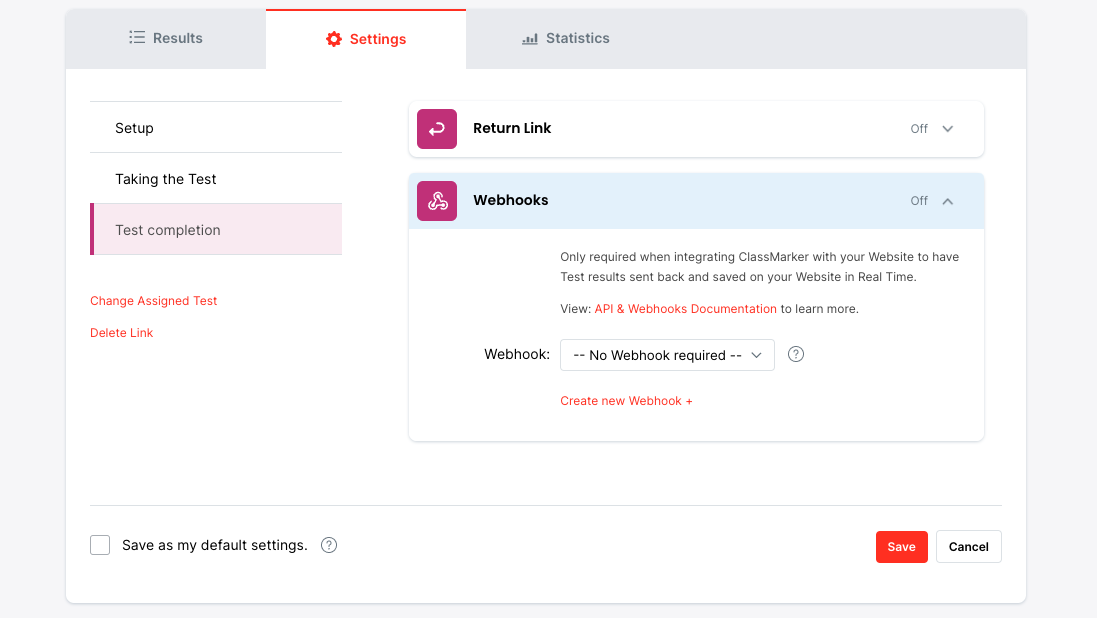
  4. Save your settings below.
    Screenshot
  5. Congratulations! Your Certificate is now assigned and ready to be downloaded by you and your respondents where applicable.

How to Download Certificates:

  1. Respondents can download Certificates from their results pages. If you have results emailed to respondents, the download Link for the Certificate will also be in their results email.
  2. Administrators can download Certificates at any time from their respondents results pages.

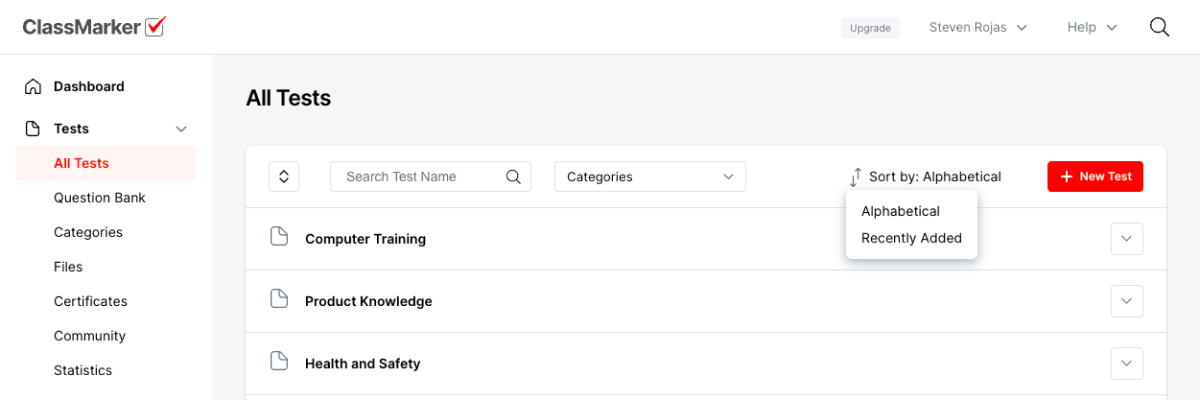
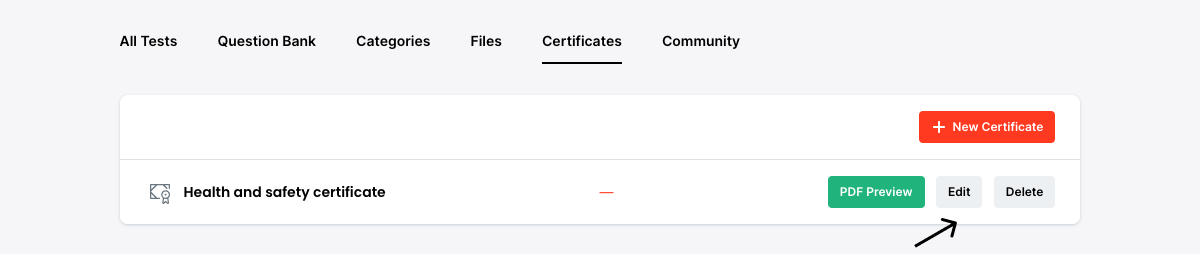
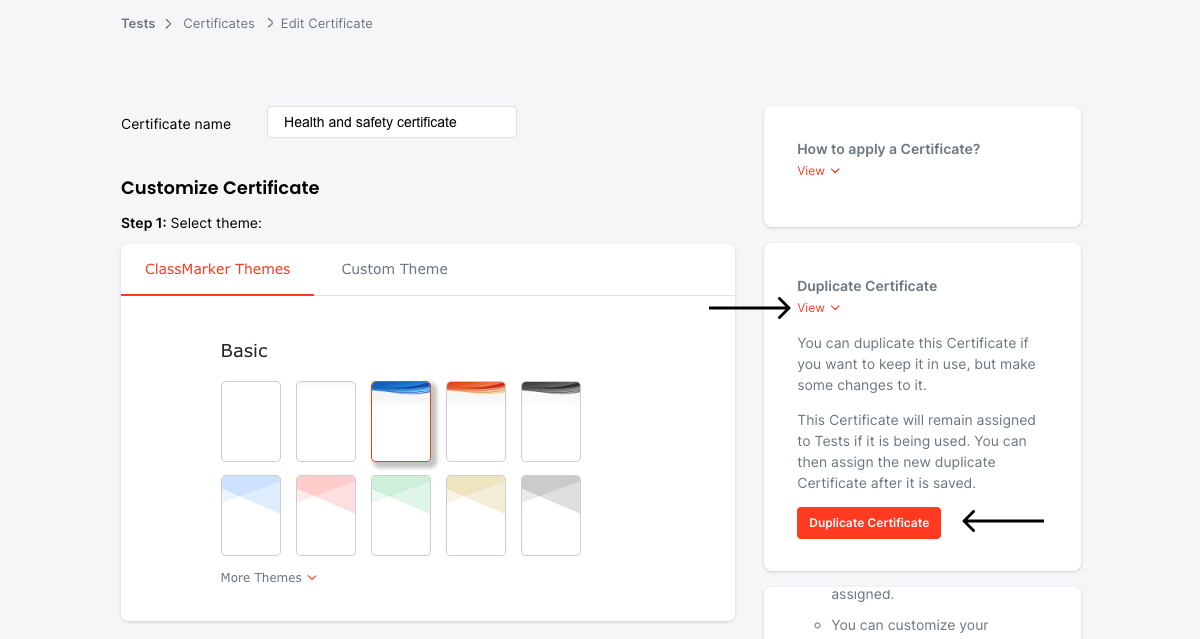
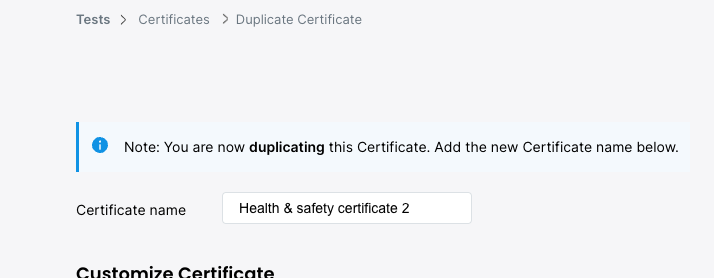
How to Duplicate Certificates:

  1. Go to the Certificates page found under the Tests navigation.
    Screenshot
  2. Select to 'Edit' the Certificate you wish to duplicate.
    Screenshot
  3. On the right hand side of the page, you will see the Duplicate Certificate option. Select this option.
    Screenshot
  4. Add a new Name for this New Certificate and make your changes.
    Screenshot
  5. Save your changes at the bottom of the page.
ClassMarker is Award winning 2017
ClassMarker is Award winning 2014
ClassMarker is Award winning 2011
ClassMarker Security
Forgot password? / Register now